
Image to Video with Reference Images: A Practical MAGI-2 Guide
Starting from a still image removes 80% of visual randomness. Because MAGI-2 accepts image, video, and audio references (up to 10 images, 5 videos, and 5 audio tracks on the underlying model) plus start/end frames, pairing a crisp reference with targeted motion cues keeps products and characters on-model.
1. Choose a first frame built for motion
Upload clean, high-resolution images matching your target aspect ratio (21:9, 16:9, 4:3, 1:1, 3:4, or 9:16). Avoid heavily compressed screenshots or images where the subject is cropped tightly against all four edges — leaving breathing room gives the camera space to dolly or pan without inventing distorted limbs.
2. Describe only what changes, not what is already in the image
When using Image to Video, avoid re-describing every static color or background prop. Focus your prompt on three things: subject micro-motion, environmental physics (wind, water, light flicker), and camera trajectory.
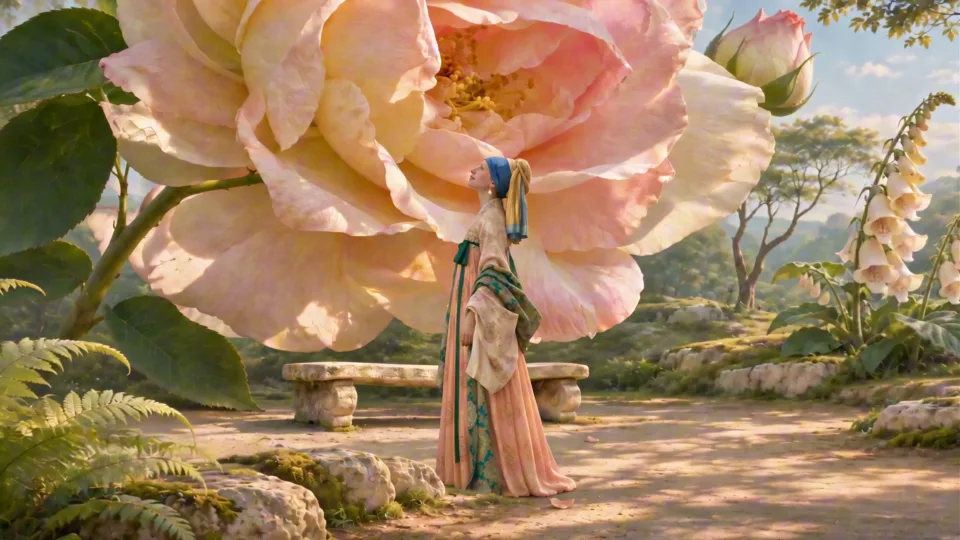
Keep the character’s face, outfit, and warm sunlit palette consistent with the reference frame. A gentle breeze moves hair and fabric while the camera executes a smooth 15-degree arc to the right.
Preserve exact bottle label typography and glass geometry. Slow orbital studio push-in as soft mist drifts across the stone surface and a warm specular highlight glides across the cap.
3. Start-and-end frame control for planned transitions
For ad transitions or before/after transformations, anchoring both the opening frame and closing frame constrains interpolation so the clip lands cleanly on your brand packshot.
Frequently Asked Questions
Why does my logo warp during fast camera spins?
Rapid 180-degree rotations force the model to hallucinate occluded angles. Limit movement to gentle 15–30 degree arcs or slow push-ins whenever text legibility matters.
Does magi2.info upload my reference image before I click Generate?
No. In the browser workbench, selected reference images are previewed locally until you explicitly run a generation workflow.
Jump straight into the workbench with 4-30s 1080p and six aspect ratios.
More MAGI-2 Guides
Learn a repeatable six-part prompt formula for MAGI-2 4–30 second 1080p videos, including single-take camera moves, multi-shot pacing, and native sound cues.
ComparisonMAGI-2 vs Seedance: Side-by-Side Specs, Workflow & When to Pick EachAn objective, dated comparison of Sand.ai MAGI-2 (480B, 4–30s 1080p native audio) vs Seedance / Jimeng across duration, multi-reference control, pricing, and creator workflows.
Use Cases & AdsHow to Make Product Video Ads & Short-Form Commercials with MAGI-2Turn static product photography into 9:16 TikTok/Reels hooks and 16:9 hero commercials with MAGI-2’s six aspect ratios, native foley audio, and image-to-video control.